


PayPal Business login lets business account holders access their dashboard to manage payments, transactions, invoices, reports, and account settings. Business users typically sign in through PayPal’s standard login system, and accessing PayPal directly through its official website or app helps reduce the risk of phishing and fake login pages.
How to Log In to a PayPal Business Account
The standard PayPal sign-in page accepts an email address or eligible mobile number associated with your account. Depending on your account and device, PayPal may also offer alternative authentication methods, including approval through the PayPal app.
To access your business account:
- Open PayPal directly in your browser or launch the official PayPal app.
- Select Log In.
- Enter the email address or mobile number associated with your Business account.
- Select Next and complete the requested authentication.
- Complete two-step verification or another identity check if PayPal requests it.
- After authentication, access your account dashboard.
There generally is not a separate everyday sign-in process simply because an account is a Business account. Your account credentials determine the PayPal account you access.
This distinction matters because searches for terms such as “PayPal merchant login” or “PayPal business account login” can expose users to unofficial pages. For routine access, starting directly from PayPal reduces the chance of entering credentials into a spoofed site.
What You Can Access After Signing In
A PayPal Business account is intended to provide payment and commerce capabilities beyond basic account access. Available features vary by country, account eligibility, and the PayPal products a business uses.
For example, PayPal describes Business accounts as supporting tools such as invoicing, online payments, reporting, and integrations with ecommerce platforms. Its current business offerings and specific capabilities differ by market.
| Business task | Where to start after login |
| Review incoming and outgoing payments | Account activity or dashboard |
| Send or manage invoices | Invoicing tools |
| Check an account restriction | Notifications or Resolution Center |
| Manage security | Account security settings |
| Link or manage financial information | Account settings |
| Review business activity | Reporting or transaction tools |
| Manage eligible payment integrations | Business or developer tools |
The exact dashboard labels can change over time and can differ between regions, so the options displayed in your account are the most relevant guide.
PayPal Business Login With a Passkey
Eligible PayPal users can use a passkey as an alternative to entering a traditional password. A passkey authenticates you using the method you use to unlock your device, such as a fingerprint, face recognition, device PIN, or device password.
PayPal says biometric information used to unlock a passkey is not shared with PayPal and does not leave the user’s device. Passkeys are tied to supported devices and password-management systems, which means a passkey created on one device may not automatically be available on another device using a different password manager.
PayPal currently documents passkey support for eligible accounts on supported versions of iOS, macOS, Windows, and Android, although browser and device requirements can change. Check PayPal’s current documentation rather than assuming an older device or browser supports the feature.
If a passkey is unavailable, PayPal may still provide another authentication method, such as a password or one-time code, depending on the circumstances.
What to Do If Your PayPal Business Login Is Not Working

A failed login does not necessarily mean your Business account has been suspended. Incorrect credentials, an outdated phone number, authentication problems, browser issues, or additional security checks can all prevent access.
Start with the recovery options shown on PayPal’s official login screen instead of repeatedly guessing your password.
You Forgot Your Email Address
PayPal’s login interface includes a Forgot email? option for users who cannot remember which email address is connected to their account.
Use PayPal’s official recovery process and provide the information requested. This is safer than trying credentials on websites reached through unsolicited emails.
You Forgot Your Password
Use the password-recovery option available through PayPal’s sign-in process.
If you received a message telling you to reset your password, do not assume the link in that message is genuine. PayPal recommends opening a browser and going directly to PayPal when resetting a password rather than following an unexpected password-reset link.
Your Verification Code Goes to an Old Phone Number
Two-step verification can create a particular problem when a business owner changes phone numbers.
PayPal states that if two-step verification remains associated with an old number, access codes may continue to be sent to that number. Users who recover their accounts should update the phone number associated with the account promptly.
This is worth checking before a business changes or cancels a company phone line.
PayPal Cannot Confirm Your Identity
PayPal can request additional authentication when you sign in. Its login interface may offer methods such as approving the login through a mobile device, and the available options depend on the account and situation.
If PayPal cannot verify you using the available method, use the Having trouble logging in? or recovery option shown on the official sign-in page rather than creating another account to bypass the problem.
Login Problems vs. Account Limitations
A login problem and an account limitation are different issues.
A login problem prevents you from authenticating or accessing the account normally. An account limitation restricts particular PayPal functions. PayPal explains that a limited account may, for example, be unable to send or withdraw money.
If you can sign in but cannot perform a business activity, check your notifications and the Resolution Center.
PayPal says users are normally asked to complete specific steps to address an account limitation. Resolution time depends on the individual case, particularly when additional information or documents require review.
| Situation | Practical next step |
| Cannot remember login email | Use PayPal’s email recovery option |
| Password is rejected | Start official account recovery |
| Code goes to an old number | Recover access and update the phone number |
| Account opens but some functions are unavailable | Check notifications and Resolution Center |
| Email says the account is limited, but PayPal shows no limitation | Treat the email as potentially fraudulent |
| Unexpected activity appears after login | Secure the account and review/report suspicious activity |
One particularly useful warning comes from PayPal itself: if an email claims your account is limited but there is no corresponding limitation in your Resolution Center, the email may be fake.
How to Identify a Fake PayPal Business Login Page
Business accounts can be attractive phishing targets because compromising one may expose payment information and business funds.
PayPal advises users to inspect the destination carefully and says legitimate PayPal pages use the paypal.com domain. It also warns against supplying passwords or sensitive financial information in response to suspicious emails.
A safer habit is simple: when an email says something is wrong with your account, open PayPal separately and check the account itself.
For example, imagine you receive an email saying, “Your business account will be suspended today. Verify now.” Instead of clicking its button, open a new browser window, go directly to PayPal, log in, and check your notifications or Resolution Center.
PayPal specifically recommends this direct-login approach for suspicious password-reset messages.
How to Secure Your PayPal Business Account
Business account security should not depend on a password alone.
PayPal recommends avoiding password reuse and using longer passwords. It also supports two-step verification, which can add another authentication requirement when someone attempts to access the account.
PayPal’s documented process for enabling two-step verification on the web is to sign in, open Settings, select Security, and choose the setup option for two-step verification. Depending on availability, authentication may use an authenticator app or an SMS code.
For a business, a practical security setup includes:
- Use a unique password that is not shared with email, banking, ecommerce, or accounting accounts.
- Enable two-step verification where available.
- Consider a passkey on supported devices.
- Keep recovery email addresses and phone numbers current.
- Never give a password or one-time security code to someone who contacts you unexpectedly.
- Avoid staying signed in on shared or publicly accessible computers.
- Review account activity promptly when something appears unusual.
PayPal states that it will not ask users to provide their password and warns users not to share password-reset or security codes with other people.
Personal vs. Business Account Login
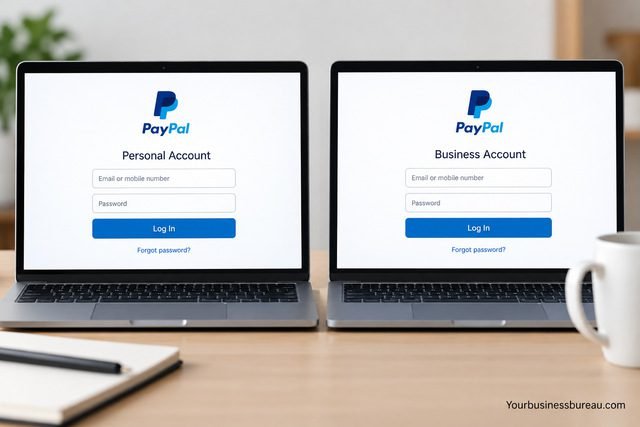
Both Personal and Business users access PayPal through its account authentication system, but the functionality available after login depends on the account.
PayPal describes Business accounts as supporting business-focused capabilities such as receiving payments, issuing invoices, connecting ecommerce tools, and using reporting or other commerce features. Exact products and availability depend on the user’s country and account.
PayPal also states that both Personal and Business accounts can send and receive payments. A Business account adds tools intended for commercial activity.
Therefore, finding the correct Business account usually depends on signing in with the credentials associated with that account, not locating a special “business-only” password page.
Creating a PayPal Business Account If You Do Not Have One
If you searched for a PayPal Business login but have not created an account yet, you need to register before you can sign in.
PayPal’s requirements vary by country. Its U.S. Business account information, for example, says applicants may need details including their legal name, email address, password, tax identification information, business description, and business bank account information. Other markets specify different registration information.
That regional variation is important. Do not use a checklist written for one country as proof of what PayPal will require in another.
After registration, PayPal may require additional verification or account setup depending on the business, location, products being used, and applicable regulatory requirements.
Conclusion
For a PayPal Business login, the safest route is to access PayPal directly and authenticate with the email address, eligible mobile number, password, passkey, or other verification method available for your account. Business users generally do not need to hunt for a separate merchant login website.
If access fails, use PayPal’s official recovery options. If you can log in but business functions are restricted, check the Resolution Center for an account limitation. Most importantly, avoid entering business credentials through unexpected email or text links. Direct access, two-step verification, updated recovery details, and passkeys where supported can significantly reduce avoidable login and security problems.
FAQ’s
Business account holders can use PayPal’s standard account sign-in process. The account associated with the credentials determines what account and features become available after authentication.
PayPal’s current login interface supports an email address or eligible mobile number, although the options available can depend on how the account was configured.
One possible cause is that two-step verification is connected to an old mobile number. PayPal specifically advises users to update their account number when they change mobile numbers.
Yes, PayPal supports passkeys for eligible accounts and supported devices. A passkey can authenticate the user through the device’s existing unlock method instead of requiring the PayPal password to be typed.
Do not rely on the email’s appearance alone. Instead of following an unexpected login or password-reset link, PayPal recommends opening a browser and accessing PayPal directly. Account issues can then be checked from inside the authenticated account.
Log in directly and check the Resolution Center or notifications on your dashboard. PayPal normally provides the steps required for the particular limitation there.


